FAQ
Here you can find the answers to frequently asked questions! If you have product specific question, please click on each product.

General Questions
How do I update my Mousetrapper?
Download the guide to update your Mousetrapper.
DownloadChecklist for Wired and Wireless Connection
Wired Mousetrapper
- Check that the cable is properly connected to both the computer and the Mousetrapper.
- When connected, the LED light should turn green for about 5 seconds and then go off.
- If it’s not working, try a different USB port, preferably directly on the computer rather than through an adapter.
- Try connecting it through MT Keys and see if the device appears in the list.
- Check if there is a software update in MT Keys to install (Flashing green dot under the cloud at the top right corner of the window).
Wireless Mousetrapper
- Ensure that the battery is connected.
- Charge the device until the LED shows a steady green light.
- Disconnect the cable and search for the device in your computer’s Bluetooth settings. The LED should blink blue when connected.
- Make sure the Mousetrapper is not too far from the computer or has obstacles for signal strength (e.g., a metal computer case or similar).
If you are still experiencing connection issues, please contact us here.
The pointer on the screen doesn’t follow the movements of the control pad, or lags behind.
This is probably due to dust or debris in the Mousetrapper near the sensors. In most cases, you can easily fix this yourself.
All you need is a can of compressed air (available from most office supply and electronics stores). Follow these steps:
- Disconnect the Mousetrapper from the computer.
- Stand it on edge.
- Press and hold the control pad in. Blow the compressed air into the gap that this creates.
- Wait about 5 minutes to make sure that any condensation that has occurred evaporates.
- Then connect the Mousetrapper again and work as usual to see if the problem is gone.
The mousetrapper doesn’t work wirelessly (applies to Prime
To work wirelessly with the Mousetrapper, connect the USB receiver – which is stored in a compartment underneath the Mousetrapper – into a free USB slot on your computer.
If you have a Mousetrapper Prime, wireless mode starts automatically.
Then disconnect the USB cord and test that your Mousetrapper is working wirelessly.
You can use it wirelessly until the LED begins blinking red. When that happens, you need to charge the battery by reinserting the USB cord. Of course you can keep working as usual while the unit charges. When the LED glows a steady green, the unit is fully charged. The LED should go dark when you disconnect the USB cord.

I can’t use the mousetrapper’s edge scroll.
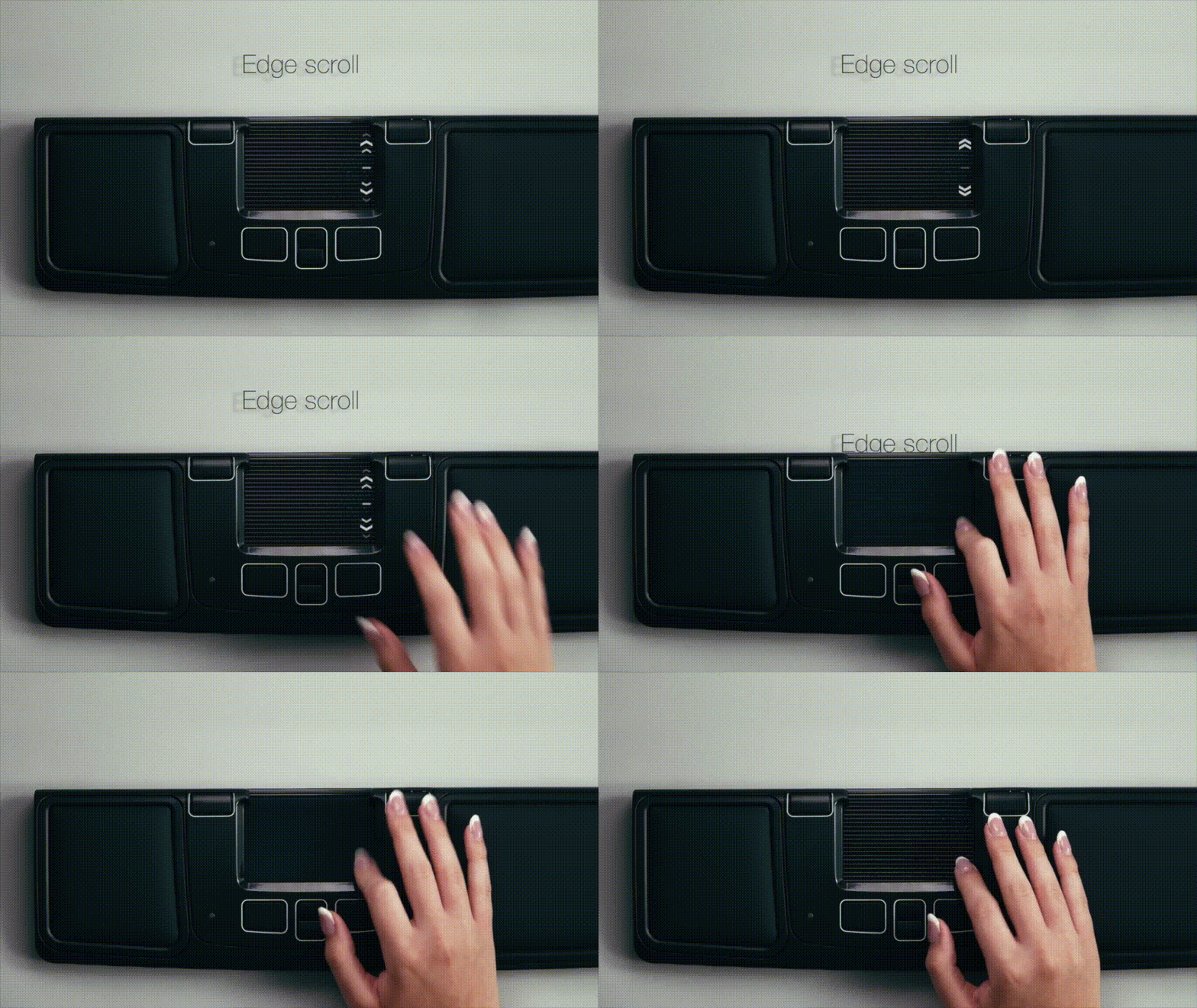
The Alpha, Advance and Prime models have a scroll feature on the right edge of the control pad. To activate scrolling:
- With the control pad standing still, place a finger along the right-hand edge of it, where an infrared beam shines top-to-bottom. Scroll mode starts when you break the beam.
- Scroll as desired, then lift your finger. Scrolling deactivates after about 1 second.
- single movement, place it next to the edge of the plastic frame, then slide the control pad up or down.)
It can take a bit of time to get used to the technique if you haven’t worked with it before, and if the user wants different scrolling methods, there are also scroll buttons.
See the instructions for button configuration on your model.
The Mousetrapper shows no signs of life
Try changing the USB port or using another computer. If you have another cable of the same type, try that as well. If a docking station or hub is being used, try connecting the device directly to the computer.
How do I get my Mousetrapper Delta started? It shows no signs of life.
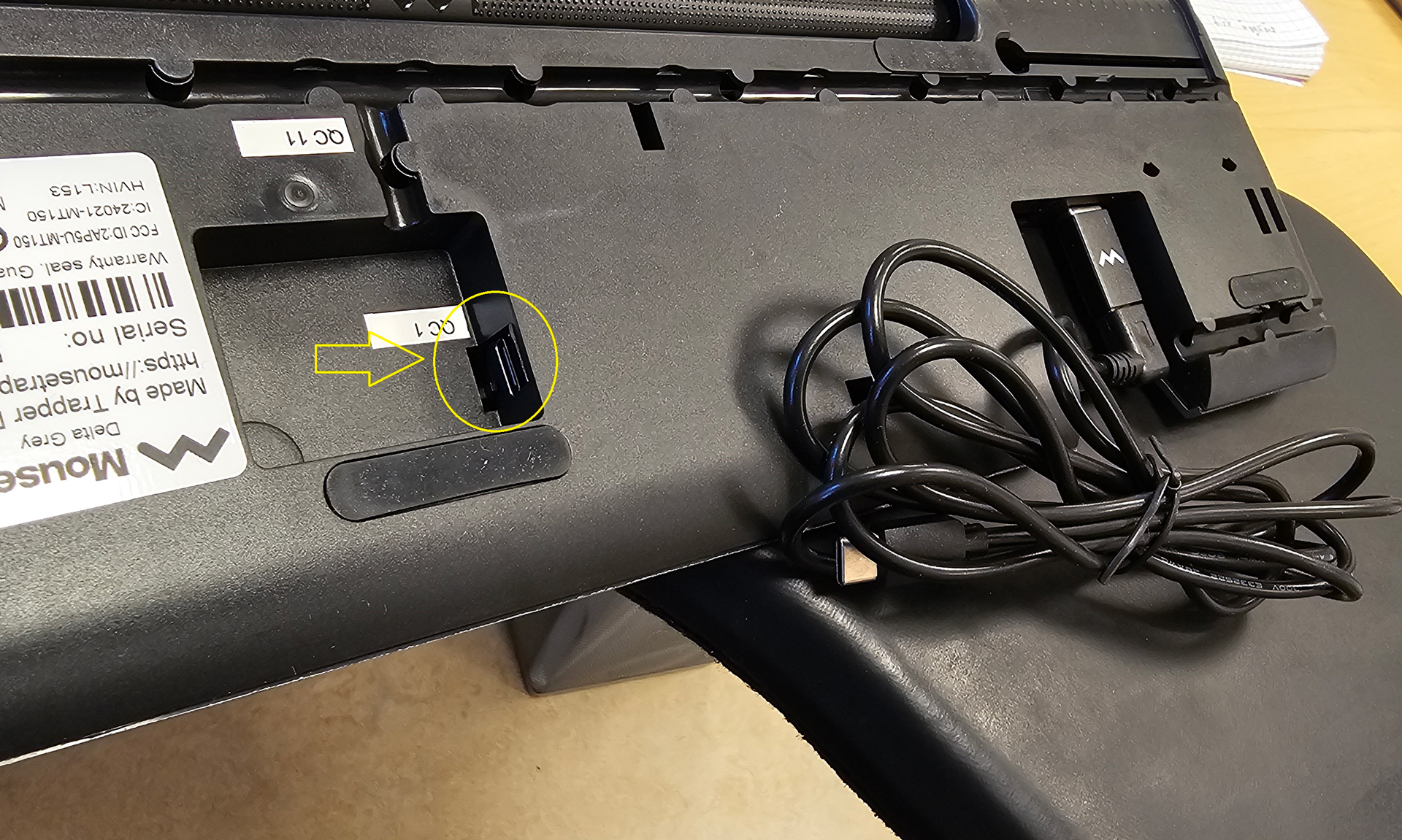
On the Mousetrapper Delta, there is a USB hub on the underside of the product that can be mistaken for the USB port where the cable to the computer should be connected. Use the recessed port located in the middle of the product (see image) for connecting to the computer.
The USB hub with two ports should only be used to connect, for example, a keyboard or another USB device.
How can I see the age of my mousetrapper to know if it is still under warranty?
There is a label on the underside of your Mousetrapper with the product’s serial number. The serial number is formatted as: MTXXX XXXX XXXX or MTV XX XXXXXX (see the image example below).
Send an email with your serial number to [email protected].


Some of the mousetrapper buttons seem to have no function.
To check which commands are available for each key, use MT Keys.
I can’t download or install the MT Keys at my workplace.
All changes made in MT Keys are stored locally in the Mousetrapper. Use MT Keys in the browser.
How do I change the wrist pads on my Mousetrapper?
It is possible to replace the wrist pads on Mousetrapper models Advance 2.0 and Prime if they become worn. New pads can be purchased from our resellers and directly via Mousetrapper. Contact us if you need help with ordering new wrist pads.
Replacing the wrist pads
Start by easing off the frame that surrounds each pad. This can be done entirely by hand or with the help of a thin object. Gently pry up the inside edges of the frame, remove the old pad and insert the new one. Then press the frame back down until all the retention clips snap into place.
My battery won’t charge anymore or has expanded.
We use the type of battery found in most mobile telephones today. The durability varies depending on usage. The battery has a 6-month warranty.
If the battery has expanded so the battery compartment cover can no longer be closed easily, the battery should be disconnected immediately and handed in for recycling. Do not try to force the cover on again if the battery doesn’t fit (see image). Of course, it is possible to work with the battery disconnected by using the supplied USB cable.

Replacing the battery
New batteries can be purchased from most Mousetrapper resellers and directly from us.
You can easily replace the battery in Mousetrapper Prime yourself as it sits under a battery compartment cover that is easy to open without tools.
What product guarantees does Mousetrapper offer?
Advance 2.0, Advance 2.0+, Delta and Lite:
A 2-year warranty from the date of purchase.
Prime and Alpha:
A 2-year warranty from the date of purchase. A 6-month warranty applies to the battery.
I have lost or damaged the USB cable. Which cable should I buy?
Mousetrapper Lite, Advance 2.0/2.0+, Delta and Alpha use a USB-A cable.
Mousetrapper Delta and Prime use a USB-C cable.
These can be purchased from most electronics retailers or from Mousetrapper. Contact us to order.
I can’t use the web version of MT Keys. Can I download it instead?
Yes, if you have an older Mousetrapper and cannot use MT Keys in your browser, you can download an app instead.
Download